


Adobe Firefly is Adobe’s generative AI tool for creating and editing images and video from text prompts, with features such as Generative Fill and text-to-video. This guide explains what it does and how to edit an image with a prompt. Plans, credits and offers change, so check Adobe’s Firefly plans page for current pricing before you subscribe.
Written by vishakha. Last updated 17 November 2026. Adobe updates Firefly often, so features and menus may differ from what is described here.
What Exactly Does Adobe FireFly Do?
Adobe Firefly is essentially a "creative co-pilot" that helps you build high-quality images and videos just by describing them. The tool includes features like Generative Fill, which lets you add or remove objects from a photo with a quick text command, and Text-To-Video, which turns your ideas and creativity into a high-resolution clip.
Adobe Firefly also integrates with partner models from leading AI companies, enabling enhanced creative capabilities directly within the app.
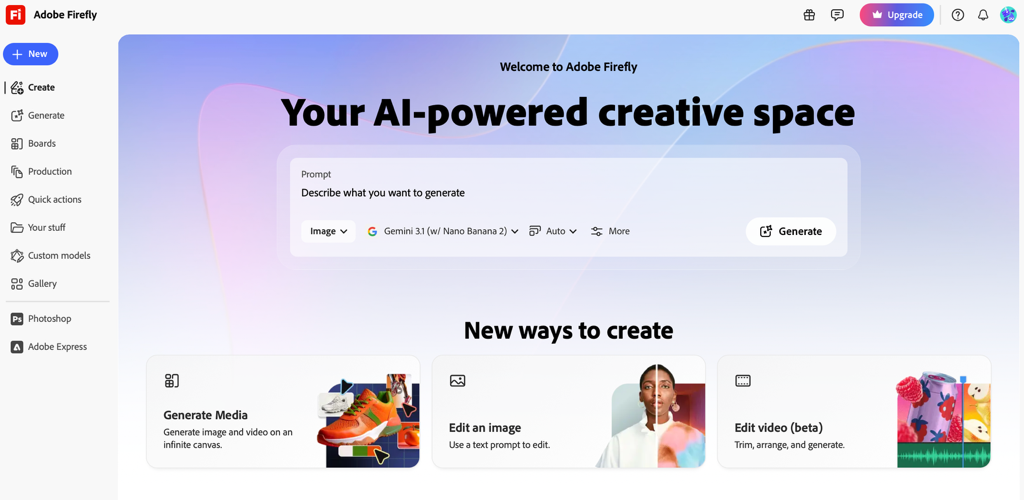
Why Adobe FireFly Stands Out: Features That Actually Save You Time
Want to know the reasons behind why Adobe FireFly is different from any other editing or multitasking tools? Here are some key points to look out for:
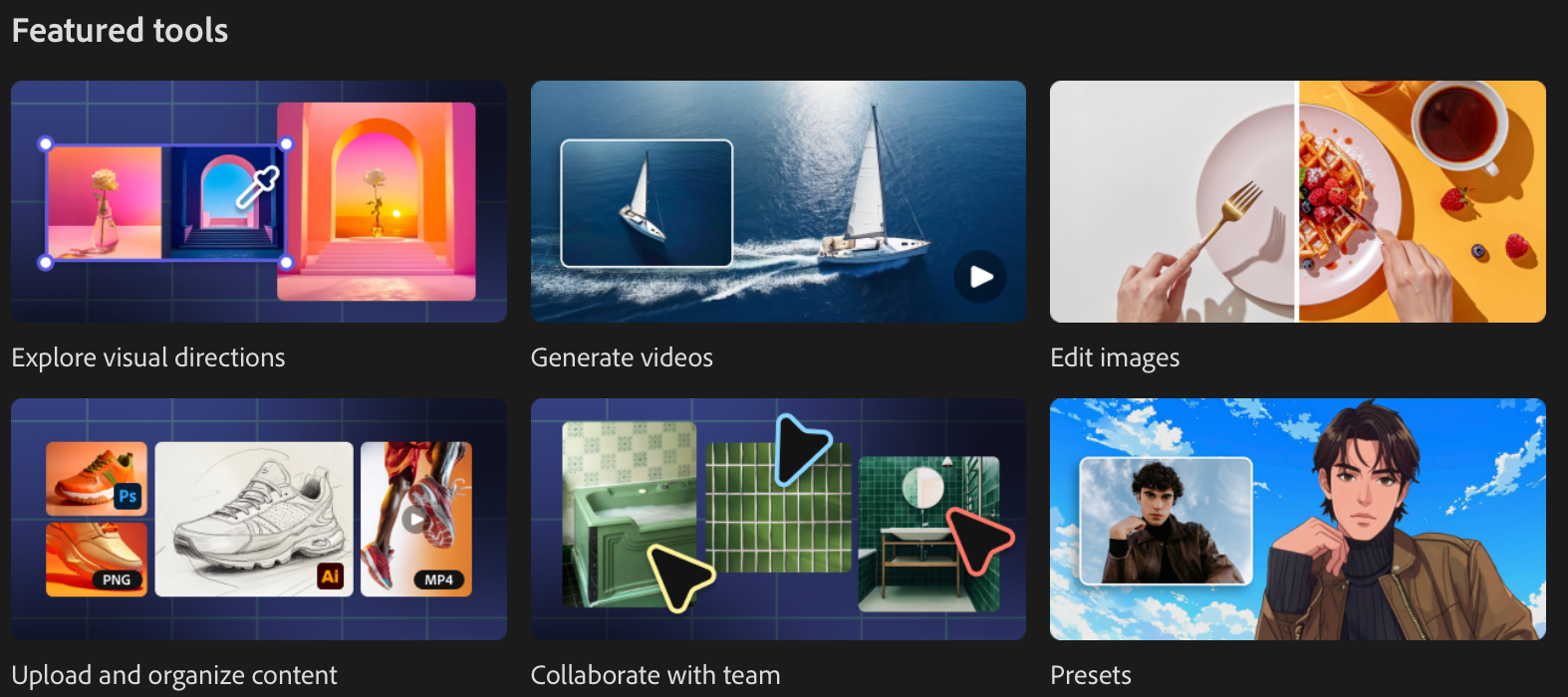
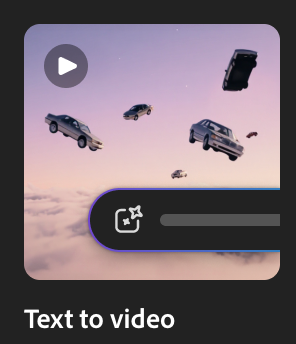
Turn simple prompts into high-quality clips, making it one of the most effective text-to-video AI tools.
Animate static images or illustrations into engaging visuals, positioning them as a powerful image-to-video AI tool.

3. No Skills Required:
Create professional-looking videos without prior experience, perfect for beginners and marketers.
4. Creative Control With AI:
Customise angles, motions, effects, and style to match your exact vision.
5. Flexible Keyframes
Use text prompts, images, or keyframes to generate videos in your way.
6. Perfect For Content & Marketing
Generate b-roll, social media clips, and visual effects quickly.
7. Commercially Safe Content:
Create content trained to be safe, secure, and ready for brand use.
Mastering Video with AI
Adobe Firefly’s video capabilities have evolved significantly, making it a strong choice for AI-powered video generation. It is designed with commercial safety in mind, meaning brands can use the output with confidence.
How do I create a video with AI?
Creating professional-grade clips is surprisingly intuitive. You have two primary paths:
Text-to-Video: Describe a scene (e.g., "Cinematic drone shot of a neon city in the rain"), and Firefly generates a high-quality clip with realistic lighting and motion.
Image-to-Video: Upload still images as keyframes, and Firefly generates motion between them to create smooth animations or transitions.
Tutorial: How to edit images with AI
Whether you're looking for a top-rated AI image editor or a quick guide, Firefly's "Prompt to Edit" module simplifies the process.
Step-by-Step Guide:
Step 1: Upload your image to the Firefly web app.
Step 2: Use the selection brush to highlight the area you want to change.
Step 3: Enter a prompt (e.g., "Change wooden table to white marble").
Step 4: Select the AI model available within the app for your preferred creative output.
Step 5: Review the variations and download your final image.
Plans, Pricing, and Benefits
If you're exploring Adobe Firefly, it's helpful to understand how its plans are structured. While pricing and inclusions may evolve, the core differences between plans are based on generative credits, feature access, and creative capabilities.
Adobe Firefly typically offers multiple tiers designed for different types of users from beginners to high-volume creators.
- Access to Standard vs Premium Features
Standard features (like Generative Fill and basic image editing) are generally available with unlimited usage.
Premium features (such as video generation, advanced effects, and high-resolution outputs) consume credits and vary by plan.
2. AI Across Multiple Media Types
Adobe Firefly supports creation across:
- Images
- Videos
- Audio
- Vector graphics
This makes it an all-in-one creative AI platform rather than a single-purpose tool.
3. Access to Multiple AI Models
Adobe Firefly includes access to a range of AI models from Adobe and partner companies, giving users flexibility in style, quality, and output types—all within one platform.
For the most up-to-date details on pricing, credits, and plan inclusions, visit:

How we checked this
This guide is based on Adobe’s own descriptions of Firefly. We have not benchmarked the output, and the commercial-use and plan details come from Adobe, so read Adobe’s current terms and plans page before you rely on them.
Conclusion
Whether you are generating an AI video or editing a high-resolution image, Adobe Firefly provides a powerful set of tools to bring your ideas to life. With strong creative controls and professional-quality outputs, it helps streamline content creation for individuals and businesses alike.
Sharpen your creative workflow with Adobe Firefly and unlock new possibilities in AI-powered design.
Frequently asked questions
What is Adobe Firefly?
Adobe Firefly is Adobe’s generative AI tool for creating and editing images and video from text prompts, with features such as Generative Fill and text-to-video.
Is Adobe Firefly free?
Adobe offers Firefly plans with different credit allowances, and offers change. Check Adobe’s Firefly plans page for what is free and what is paid today.
Is Firefly content safe for commercial use?
Adobe says Firefly is designed to be commercially safe. Read Adobe’s current terms before you use output for a client or brand.
How do I edit an image with Firefly?
Upload the image to the Firefly web app, select the area with the brush, enter a prompt describing the change and choose a model.


